Defining and Managing Scenario Groups
For better management of deployed scenarios, Orchestra provides a grouping mechanism. You can define individual groups and associate scenarios with them. The groups can be filtered in all scenario-specific tables, such as the main scenario overview or process monitoring.
Defining Groups
To define, modify, or delete groups, select the Scenario view in the left-hand panel, then choose the tab Scenario groups in the right-hand tab panel.
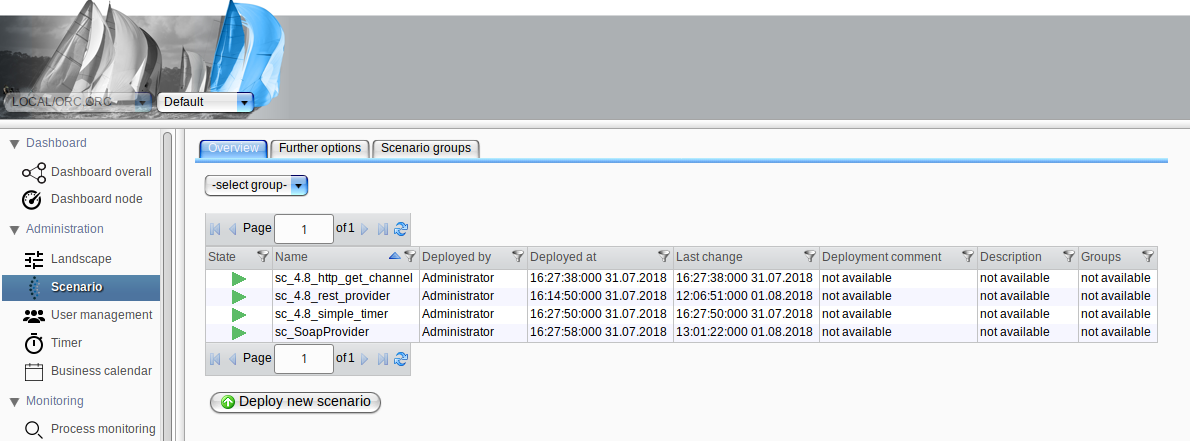
You will see a widget to create a new group:

Here, you can add personal groups, such as those for scenario types like vendor, supplier, cleaning, or messaging. For every created group, a new entry will appear in the overview, which may look like this:

Editing and deleting a group is straightforward in this view.
Group Assignment
Once defined, groups are available for scenario assignments. Each scenario can be assigned to multiple groups, and each group can contain multiple scenarios. Therefore, you have two options:
-
Assignment in Deployment Dialog:
In the scenario deployment dialog, the defined groups are listed. After selecting a scenario file, you may assign the new scenario to the appropriate groups immediately by checking the specific checkbox(es). The newly deployed scenario will then be assigned to the selected group(s). For the example above, the dialog may appear as follows: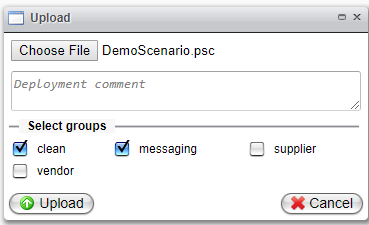
-
Assignment in Scenario Details:
The second assignment option is available in the scenario detail dialog. You can open this dialog by double-clicking the scenario in the main scenario table. The dialog features a tabbed panel, including a tab called Groups. Here, you can view the currently selected groups for this scenario and modify the group assignments. For the example above, the dialog may look like this: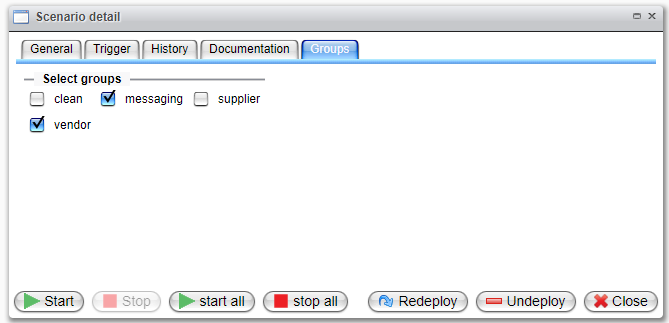
Group Filtering
To utilize the defined groups, the scenario-specific tables feature a filter element. A new drop-down box is available, containing all groups and allowing for filtering the table based on group selection:

Additionally, assigned groups can be viewed in a new column of the main scenario table:
